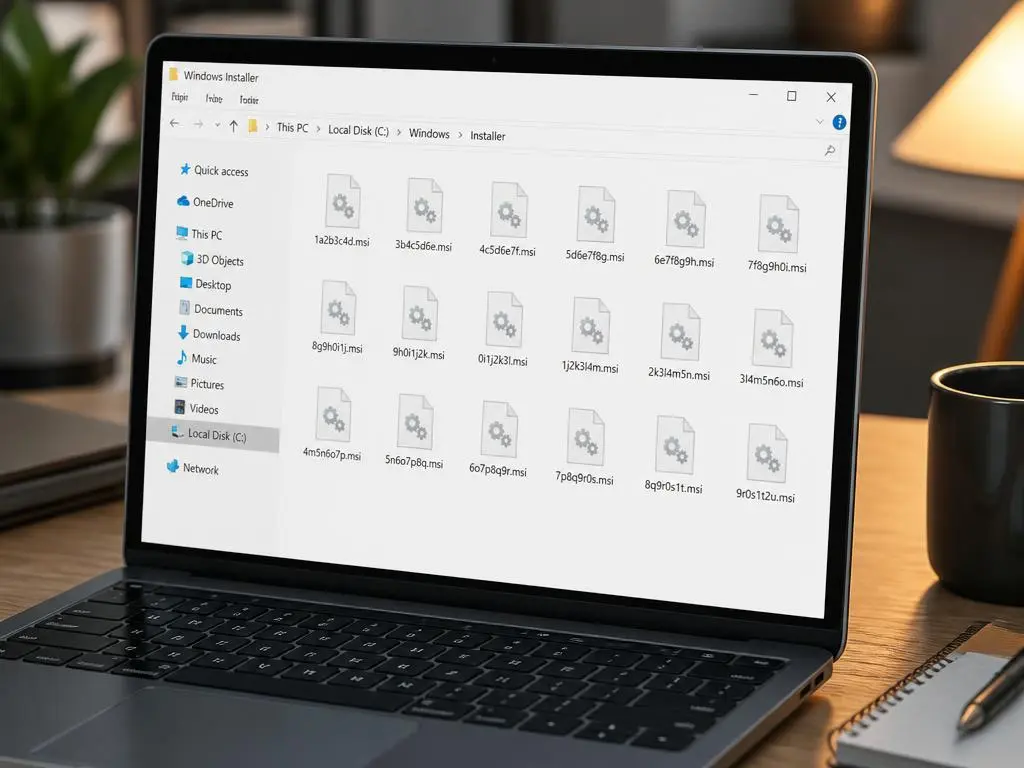
When navigating your system drive, you may have encountered the hidden folder labeled Windows Installer. Many users wonder exactly what is in the windows installer folder and if it is safe to remove its contents. This directory acts as a critical cache for the Microsoft Installer service, storing files that are essential for patching, updating, or repairing applications on your operating system. Without these files, you might experience significant issues when attempting to uninstall programs, leading to broken software environments that are difficult to fix without performing a complete system restore or manual registry cleanup.
Understanding the mechanics behind this directory is crucial for effective disk management and long-term system stability. While the folder might grow large over time as you install various software suites, it serves as the backbone for maintaining your installed applications. If you find your storage space running low, it is tempting to clear this area, but extreme caution is required to prevent major software corruption. By managing this folder correctly, you ensure that your computer remains responsive and that all installed utilities continue to function perfectly throughout their lifecycle within the Windows ecosystem and beyond.
💡 Quick Insight: Data Storage
The directory acts as a repository for MSI and MSP files. These installers allow your system to track configuration settings for every piece of software installed through the Microsoft Installer service. Keeping these files ensures your apps stay updated and functional.
Deciphering the contents of the installer folder
The files stored within this hidden location are not just random temporary bits of data that can be discarded at will. They are stripped-down versions of the original installation packages that programs require whenever you initiate a modification. Whether you are adding new features to an office suite or applying a patch to a utility, the system refers to these cached files. Learning essential steps for success in system management involves recognizing that these files are part of a complex database that manages your software installations securely and efficiently every day.
Moreover, the contents often include icons and configuration scripts that identify the software to the Windows registry. If these files are deleted or moved, the OS loses its ability to verify the legitimacy of a program, often resulting in failed uninstallation attempts or installation errors during future updates. This is why standard disk cleaning tools typically ignore this directory unless you use advanced, specialized utilities designed to identify truly orphaned packages that are no longer linked to any active software on your hardware drive.
Why managing system folders is a complex task
Maintaining a clean operating environment requires a deep understanding of how background services interact with your stored data. Sometimes, users seek a complete navigation guide regarding their system storage to maximize performance. However, blindly deleting files in the Windows Installer area can have catastrophic results for your installed programs. Instead of manually deleting items, it is often better to use Windows internal tools, such as the disk cleanup utility, which can safely suggest files that are genuinely safe to remove without breaking essential application functionality.
Modern operating systems are designed to manage these files automatically, but the accumulation of old patches can create unnecessary bloat. Understanding that this folder is essentially a database is key. When you perform regular maintenance, focusing on temporary caches or browser files is much safer than touching core installer files. Always proceed with extreme caution if you are tempted to perform manual surgery on deep system directories that hold the configuration keys to your installed applications and essential software components required for daily operations.
⚠️ Important Warning
Never delete the contents of the Windows Installer folder manually. If you break the link between your installed programs and these cached files, you will not be able to uninstall or upgrade your software. Always use official tools for cleanup.
The role of semantic data in system organization
Much like developers are mastering search success by organizing information, Windows organizes installer data to ensure rapid access for system services. Each file within the folder has a specific signature that matches an entry in your registry. This semantic link is what allows the system to instantly know which files to access when you click a button to repair a broken application. Without this structured repository, the overhead required to manage every installed component would significantly degrade the speed of your computer during updates.
This structured approach is why the folder often looks cluttered with alphanumeric names that seem unintelligible to the human user. These names are GUIDs, or Globally Unique Identifiers, which serve as direct keys to the software database. While they may appear messy, they are highly optimized for machine retrieval. Protecting the integrity of these files is essentially protecting the intelligence of your operating system. By leaving these system configuration files alone, you ensure that your environment remains stable even as you install or remove a wide range of diverse third-party applications.
📊 Key Takeaways
- The folder is hidden to prevent accidental deletion of critical data.
- It holds cache files for programs installed via Windows Installer.
- Deletion causes failures in updates, repairs, and uninstallation tasks.
- Manual cleanup is discouraged; use official utilities instead.
- The contents are vital for system maintenance and stability.
Safe alternatives for reclaiming disk space
If your primary concern is storage space, there are much safer ways to reclaim it than touching the Windows Installer directory. Consider running a disk analysis tool to find large files in your download or temporary folders instead. Removing massive video files, unused application installers, or old log files is a much more effective way to clear room on your drive. By keeping the installer folder intact, you avoid the headache of broken software installations while still achieving your goal of maintaining a healthy and fast computing machine for your daily needs.
Finally, remember that disk space management is a marathon, not a sprint. Regularly clearing browser caches and managing your library of files can yield more significant results than targeting essential system directories. By adopting a cautious approach, you allow the operating system to manage its own housecleaning tasks effectively. Always prioritize the stability of your installed software over short-term storage gains, as the cost of fixing a broken application is far higher than the time spent clearing smaller, safer temporary files throughout your drives. Keep your system running smoothly by respecting its internal structure and protocols.
