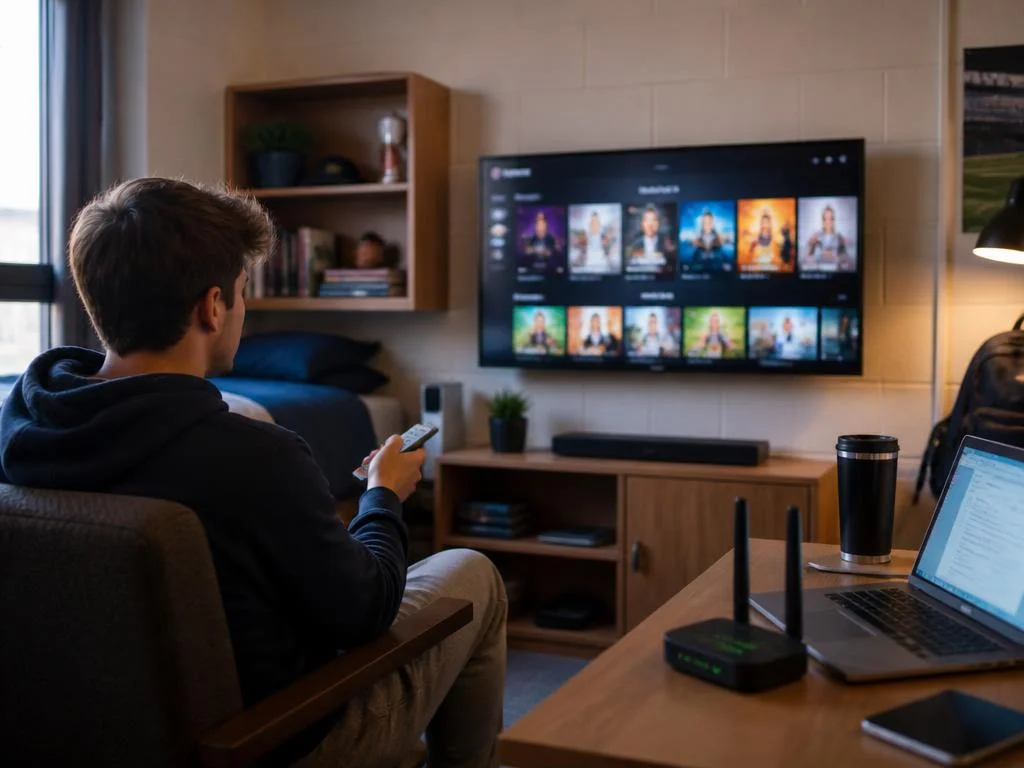
Setting up your entertainment devices in a campus environment often leads to questions about how to connect TV to eduroam safely and efficiently. Because this network is primarily designed for academic authentication through personal credentials, standard streaming hardware frequently struggles to establish a stable link. Understanding the specific requirements of enterprise-level security protocols is the first step toward getting your favorite shows running on the big screen. By following technical configurations designed for university connectivity, you can ensure that your hardware remains compliant with institutional digital policies while enjoying seamless access to various high-quality streaming media platforms.
Many students find the process challenging because smart televisions lack the user interface required to enter the standard username and password combinations typical of WPA2-Enterprise networks. Unlike home routers where a simple key suffices, academic systems demand advanced identity management. If you are struggling with this setup, investigating safe hardware handling might provide insights into maintaining your devices properly. The following guide explores methods to bridge this gap, ensuring that your dormitory living experience is as comfortable and connected as possible despite the inherent complexities of campus internet security.
Technical constraints of campus networks
The primary reason it is difficult to connect TV to eduroam lies in the way enterprise security operates across large facilities. Standard home internet provides a simple handshake process that televisions understand perfectly, but academic environments utilize 802.1X authentication. This protocol requires a digital certificate or a specific EAP-TTLS process that most consumer-grade television software simply does not support out of the box, creating an immediate barrier for standard users attempting a direct connection.
Beyond authentication, institutional security teams often implement strict firewall rules and isolation protocols to protect campus data integrity. These measures are essential for network health but frequently prevent devices from communicating with one another or external streaming servers. When you attempt to authenticate your device, the system might reject the request because it does not recognize the device’s unique MAC address, which remains unregistered within the central campus directory or the specific infrastructure management portal.
💡 Quick diagnostic check
- Verify if your campus IT helpdesk offers a dedicated device portal for non-computing equipment.
- Check if your TV supports WPA2-Enterprise security modes in its advanced network settings.
- Ensure your firmware is fully updated to handle modern authentication requests and protocols.
Alternative solutions for reliable streaming
Since a direct connection is often impossible, many users opt for a secondary router or a travel hotspot to bypass the security wall. By using a device to rebroadcast the signal, you create a private subnet that manages the authentication for you. If you need advice on equipment, checking a reliable wifi extender can simplify the signal distribution process within your room, though this should always be done in full compliance with local dormitory regulations regarding private network hardware.
Another effective strategy involves utilizing your laptop as a bridge for your television. By connecting your computer to the campus network and then creating a mobile hotspot, you allow your TV to connect to your laptop’s interface. This method is highly effective because your computer handles the complex authentication process, while the TV merely sees a standard, easy-to-use access point provided by your personal hardware setup.
Essential considerations
Always consult your institution’s acceptable use policy before deploying private routers. Many universities prohibit unauthorized wireless broadcasting to prevent interference with the core system. Using a high-quality extender guide will help you understand the limitations and potential risks of extending campus signals, ensuring you remain within the boundaries set by campus IT staff while optimizing your own media experience during your studies.
Registering devices on campus portals
Most modern universities have recognized the demand for smart devices and now offer dedicated registration portals. This process requires you to locate the MAC address of your television, which is typically found in the system information menu. Once you have this hardware ID, you can log into the university network management site from a computer to authorize your specific device to bypass the standard login screen requirements.
Once registered, the system will recognize your TV automatically when it attempts to link to the network. This eliminates the need for manual credential entry, which is the main point of failure for many users. If your university does not offer this service, you might be limited to using wired connections via an Ethernet cable, which is generally more stable and often permitted in most campus residential networking facilities.
⚠️ Security warning
Never share your personal university login credentials with your television hardware or any unverified third-party application. Always use the official university device registration portals to ensure your privacy is protected. Keeping your digital identity secure is just as important as maintaining your internet access for academic and entertainment purposes during your time on campus.
Troubleshooting common connection errors
If you encounter persistent errors, try power cycling your television to clear cached network settings that might be causing conflicts. Often, the TV holds onto old configuration data that prevents it from requesting a new IP address from the campus gateway. A full factory reset of network configurations can occasionally resolve deep-seated issues that prevent you from establishing a clean connection to the broader institutional environment.
Finally, if all else fails, reach out to your IT department. They have the specific tools to see why your device is being denied access. They might be able to manually whitelist your equipment or provide specific manual configuration steps that are not publicly documented. Staying patient and following the official channels often leads to the most stable and long-term results for your entertainment setup in a managed academic network environment.
