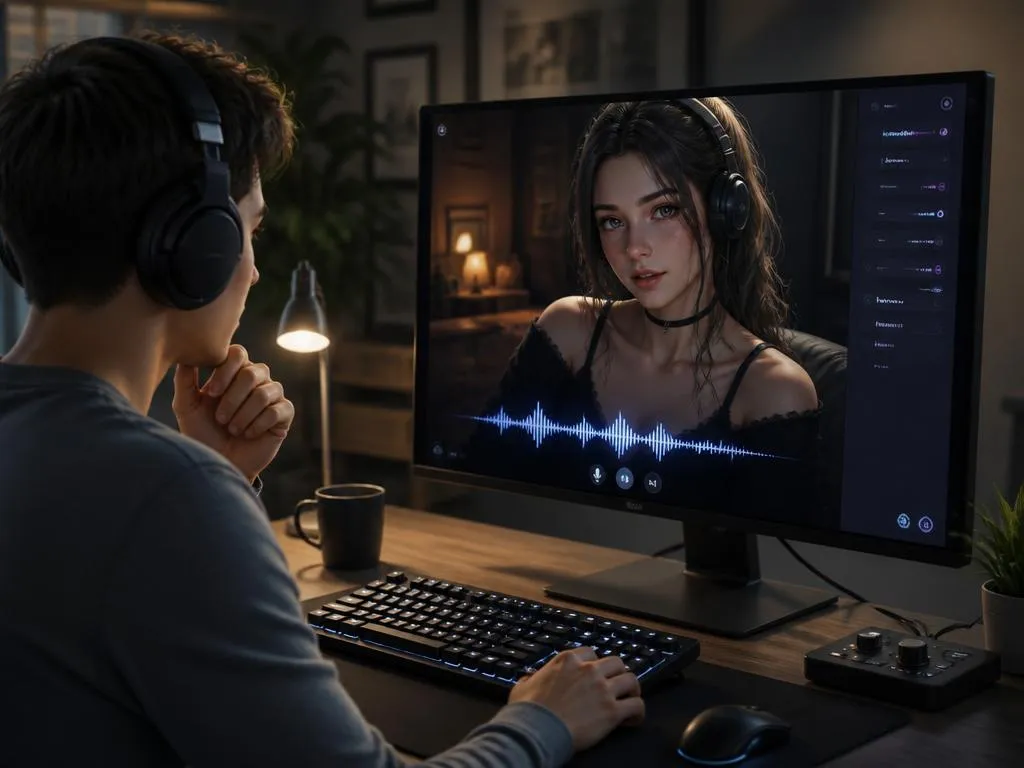
Experiencing issues with your favorite virtual characters can be incredibly frustrating when you expect immersive interactive dialogues. Many users encounter unexpected technical glitches when attempting to activate the premium Janitor AI voice features on their devices. Understanding how speech generation systems operate is essential for resolving these common audio rendering issues.
This comprehensive guide details the best techniques to restore seamless vocal outputs and enhance the auditory quality of your artificial intelligence companions. By optimizing your browser configurations and choosing the proper audio endpoints, you will unlock a highly immersive conversational environment. Read on to master every trick for a flawless acoustic experience.
Understanding why character voices fail to activate
Many enthusiasts enjoy interacting with conversational avatars, but sudden silence from your digital companion can ruin the entire experience. This problem usually occurs when backend servers experience heavy traffic loads or when API tokens expire unexpectedly. Identifying the exact root cause saves time and helps you apply the correct technical fix.
Sometimes, the issue lies within local browser cache files or conflicting browser extensions that block external audio streams. Privacy shields and ad-blocking software frequently interfere with text-to-speech scripts, preventing the system from fetching the desired files. Checking these basic parameters is always the best initial step for troubleshooting performance.
Additionally, system updates on your operating system might reset default audio output devices without your direct knowledge. If your headphones or speakers are not selected as the primary playback device, the web application will silent-render the speech. Verifying these hardware connections guarantees that sound signals actually reach your ears.
Step-by-step guide to configure Janitor AI text-to-speech
Setting up your system for real-time audio generation requires a few adjustments in the profile dashboard interface. First, log into your profile and locate the specific model settings panel where text generation parameters are defined. Making sure your API access keys are valid and active is crucial before activating sound options.
Next, navigate to the specific character settings to check if the creator enabled custom voice models for that bot. Not all digital characters come pre-configured with speech files, so you must select a compatible voice profile manually. Saving these preferences ensures the cloud system remembers your choice during subsequent chat sessions.
After verifying character compatibility, navigate to the primary playback settings to adjust the volume and speed of the spoken words. Tuning these parameters prevents the artificial speech from sounding overly robotic or rushed during complex conversational exchanges. Experimenting with different pitch values will help you find the most natural sounding output.
Finally, refresh your active browser tab to apply all the modified parameters and initiate a brand new chat session. Sending a short message will trigger the speech synthesis engine to generate and play the corresponding audio file. If the system remains silent, double-check your browser console for hidden errors.
Choosing the right API for high-quality speech
Selecting an appropriate application programming interface determines the overall speed, responsiveness, and realism of the generated voice outputs. Premium subscription models often provide access to advanced voice synthesis tools that sound remarkably human and natural. Balancing performance and monthly operating costs is essential when setting up custom connections.
For those managing diverse tech stacks, choosing customizable solutions is similar to evaluating a modular system options for business infrastructure. Both processes require selecting tools that scale efficiently according to your specific daily usage and processing demands. Opting for a reliable speech provider ensures low latency and high uptime.
Once you secure a compatible third-party API key, paste it directly into your platform settings panel. Always test the connection speed using the built-in diagnostic tools before starting long roleplay or storytelling sessions. This precaution ensures you do not waste valuable tokens on failed or incomplete audio generation requests.
Troubleshooting browser compatibility for character audio
Web browsers handle live audio rendering differently based on their internal security protocols and engine architectures. Chromium-based browsers generally offer the best compatibility for complex web applications that rely on real-time data streaming. If you experience persistent issues, switching your default browser might solve the problem immediately.
Many modern browsers block automatic media playback by default to protect users from intrusive advertisements and unexpected loud noises. You must manually grant permission for the website to play audio by clicking the lock icon next to the address bar. Adjusting these site permissions resolves the majority of silent playback issues.
Clearing your temporary internet files and browser cookies regularly also eliminates conflicting scripts that cause voice generation delays. If you continue facing issues, try launching the platform in private browsing mode to disable all external extensions temporarily. This helps isolate whether a browser addon is blocking your speech features.
Advanced methods to improve character speech synthesis
Achieving realistic vocal inflections requires adjusting advanced parameters within the text generation settings of your chosen model. Modifying temperature settings affects not only the words chosen by the artificial intelligence but also the rhythm of speech. Finding the sweet spot prevents sudden unnatural pauses or robotic phrasing in long paragraphs.
You can also guide the tone of the generated audio by using descriptive narrative prompts within your chat messages. Specifying emotions or physical actions inside asterisks often influences how the speech generation engine interprets and pronounces the text. This interactive approach adds a layer of depth and realism to your digital interactions.
When dealing with complex custom setups, you might need to optimize core workflows to maintain quick generation speeds. Utilizing the link to optimize core workflows can help you understand how structured digital environments handle large processing tasks smoothly. Streamlining these backend steps prevents audio delay and stuttering.
Additionally, using high-quality custom voice models trained on clear acoustic samples will dramatically improve the final audio output. Many online communities share custom voice files that you can import directly into your settings panel. Utilizing these community-driven assets saves time and delivers a much more polished listening experience.
ℹ️ Pro Tip: Active Voice Synchronization
For the best synchronization between text and audio, ensure that your network connection is stable. Heavy packet loss can cause the audio stream to desynchronize, leaving the voice lagging behind the printed text on your screen.
Comparing speech quality across different platforms
Different artificial intelligence services utilize distinct speech synthesis engines, resulting in varying levels of realism and voice variation. While some platforms prioritize high-speed text output, others focus heavily on generating expressive, human-like vocal tones. Understanding these differences helps you set realistic expectations for your daily interactive sessions.
Finding convenient ways to access advanced digital services online is as important as discovering physical kiosks for transactions. For instance, knowing how to locate reliable physical service hubs helps users manage digital assets seamlessly in the real world. Similarly, choosing the right digital portal ensures access to superior voice generation technologies.
| Engine Type | Latency Speed | Realism Level |
|---|---|---|
| Standard TTS | Very Low | Moderate / Robotic |
| Neural Voice API | Moderate | High / Expressive |
| Custom Voice Clones | High Latency | Excellent / Human-like |
How to customize specific character voices on the platform
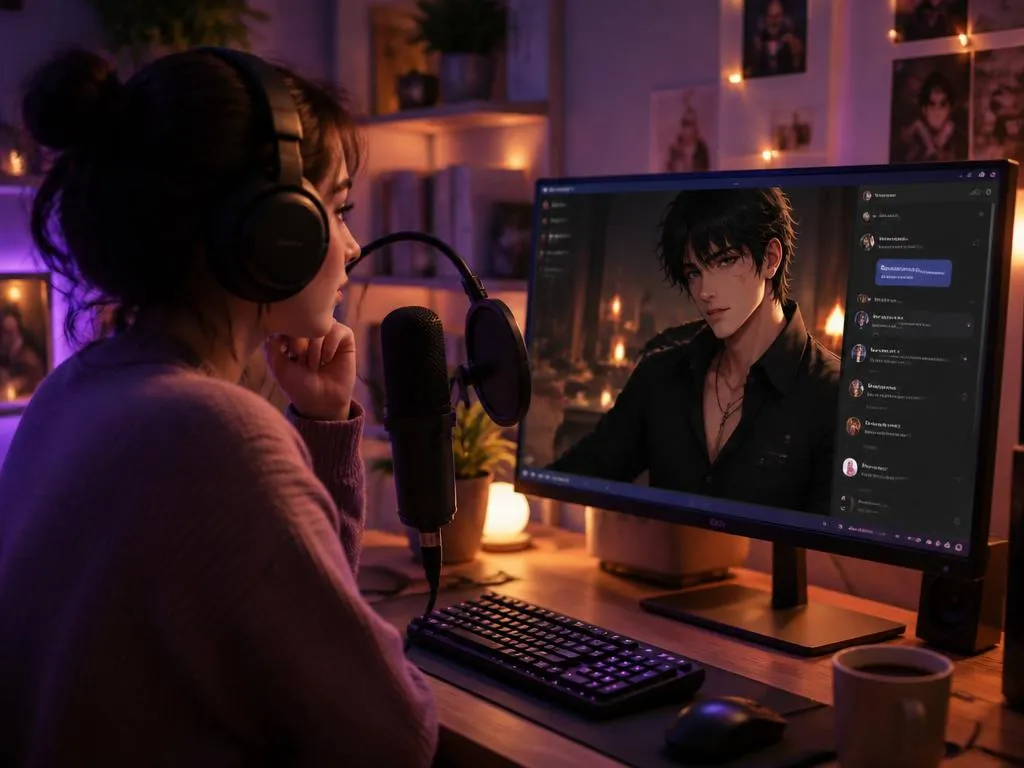
Personalizing the sound of your favorite virtual companion makes every conversation feel unique and highly engaging. To begin customization, access the character creation panel where you can edit the voice parameters of any bot you own. Here, you can insert specific model identifiers to link unique vocal patterns directly to the bot.
If you are using a public character, check the description tab to see if the author recommended specific speech synthesis settings for the best experience. Many creators spend hours fine-tuning these configurations to match the personality of their avatars. Adhering to these recommendations usually results in the most cohesive conversational experience.
Adjusting the frequency response and speech rate can also help mask any digital artifacts that occur during rendering. Some speech systems allow you to fine-tune the breathing sounds and speaking style for added realism. These small details transform flat text into a dynamic audio performance that brings the character to life.
Always remember to save your custom settings and test them with short sentences containing varied emotional punctuation. Question marks and exclamation points should trigger natural changes in pitch and pacing if the settings are configured correctly. Monitoring these subtle changes ensures your character sounds expressive and responsive in every scenario.
💡 Quick Optimization Tip
If a character’s voice sounds disjointed or starts skipping words, try reducing the speech generation speed slightly. Giving the neural engine extra milliseconds to process the text string significantly reduces audio glitches.
Managing system resources for seamless audio playback
Running complex web-based artificial intelligence applications simultaneously with other demanding programs can strain your computer’s resources. When your central processing unit is overloaded, the real-time audio decoding process may stutter or fail entirely. Closing unnecessary background applications frees up processing power to handle the live text-to-speech rendering smoothly.
Ensuring your graphics card drivers and system sound controllers are fully updated also prevents sudden driver crashes. Outdated system software often struggles to handle modern web-based audio streaming protocols efficiently, leading to dropouts. Regular system maintenance guarantees a stable foundation for running any advanced interactive platform online.
Mobile users should be particularly mindful of battery-saving modes, which often throttle hardware performance to save energy. These energy-saving features can delay background data transfers and interrupt the continuous streaming of voice synthesis files. Disabling power restrictions for your web browser app will resolve these performance bottlenecks.
📋 Checklist for Peak Audio Performance
- Verify your physical speakers or headphones are set to default.
- Disable browser-based extensions that block scripts or trackers.
- Ensure battery saving modes are turned off on mobile devices.
- Check internet connection stability to avoid packet loss.
Network optimization for lag-free voice generation
Because voice synthesis files are generated on cloud servers, your internet download speed plays a major role in performance. A slow or unstable connection causes noticeable delays between the text appearing on screen and the sound playing. Using a wired internet connection instead of wireless networks can dramatically reduce this latency.
If you are using a mobile data connection, try switching to a stable local wireless network whenever possible. Cellular data signals can fluctuate rapidly, causing intermittent connection drops that disrupt the audio streaming process. Keeping your connection stable prevents the system from giving up on loading your custom voice files.
You might also want to disable virtual private networks if they route your traffic through distant server locations. This extra routing distance increases the time it takes for audio packets to travel back to your device. Connecting directly to local servers ensures the fastest possible response times for live dialogue.
Future updates and alternative voice integration methods
The technology behind real-time speech synthesis is evolving rapidly, with developers constantly introducing newer and more efficient systems. Future platform updates promise to deliver even lower latency and higher vocal realism without requiring expensive third-party keys. Keeping an eye on community announcements ensures you are always ready to adopt these new features.
Until these native updates roll out globally, exploring community-built desktop clients and browser scripts remains a popular option. Many advanced users utilize specialized browser add-ons to route text directly to high-end local text-to-speech engines. This approach bypasses server queues entirely and offers unparalleled control over your local audio playback settings.
Another popular alternative is utilizing screen readers or specialized assistive technologies to read the dialogue text aloud. While these tools might lack the specific character-themed inflection, they offer absolute reliability and require no setup. Utilizing these built-in system accessibility features ensures you never miss a part of your interactive story.
Ultimately, experimenting with different configuration combinations will lead you to the most enjoyable and stable audio environment. As developers continue refining their digital creations, having a solid understanding of these settings prepares you for future innovations. Keep testing new options to find the perfect acoustic balance for your sessions.
✅ Key Takeaways for Seamless Audio
Unlocking perfect character voice playback requires a mix of updated browser settings, valid API keys, and optimized network conditions. Regular maintenance of cache files and checking device permissions ensures uninterrupted voice dialogues.
Frequently asked questions about Janitor AI audio settings
Why can I not hear any audio from my digital companion?
This problem is usually caused by muted browser tabs, incorrect default output devices, or disabled voice settings in your profile. First, click the speaker icon on your browser tab to ensure sound is not muted. Then, verify that the active character actually has custom voice files enabled by their creator.
How do I change the speech rate of the character?
You can adjust the tempo of spoken words directly within the advanced settings panel of your profile dashboard. Lowering the rate slider creates a slower, more deliberate pacing, while raising it speeds up the dialogue delivery. Save your changes and refresh the active chat to apply the new speed settings.
Do I need a paid subscription to use voice synthesis?
While basic text features remain free, utilizing high-quality character voice integration engines often requires premium third-party API keys. Some integrated options provide free trial credits, but heavy usage will eventually require a paid subscription. Always monitor your API usage to avoid unexpected service interruptions during active chats.
Can I upload my own voice models for the characters?
Yes, the platform supports custom voice model imports through compatible third-party speech synthesis providers in the options menu. You will need to generate a voice profile elsewhere, copy its unique identifier, and paste it into the character configuration. This advanced feature gives you complete creative control over character sounds.
What browser is best for running these voice features?
Google Chrome and Brave browser offer the most consistent performance due to their robust handling of modern web audio protocols. Always make sure to update your browser to the latest version to prevent compatibility conflicts with speech scripts. Check your security and browser settings to allow automatic media playback for the website.
⚠️ Warning: API Key Usage
Never share your custom API keys publicly or paste them into unverified third-party scripts. Compromised keys can lead to unauthorized account usage, rapid credit depletion, or account suspension by the provider.
