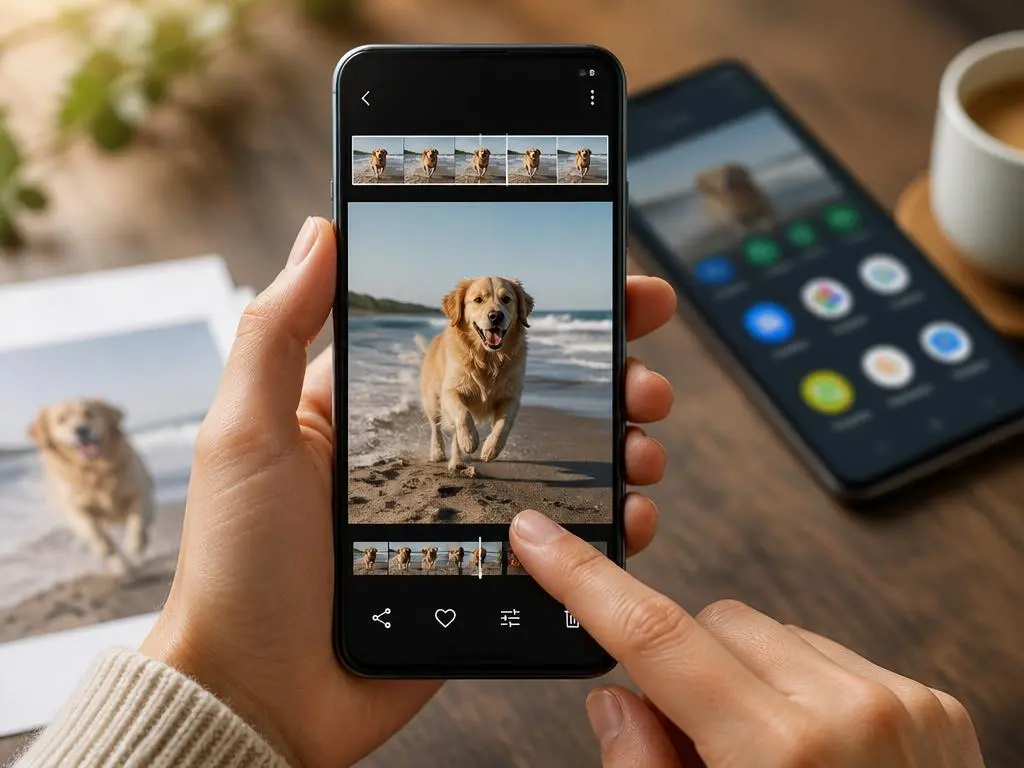
Capturing dynamic memories on your smartphone has never been more exciting. When you take live photos on android devices, you capture a brief moment of video before and after the shutter click. This feature brings still images to life, preserving subtle movements, laughter, and background action that static frames miss entirely.
However, capturing these moving moments is only the first step of your creative journey. Learning how to properly modify, convert, and distribute these files ensures your memories look perfect on any screen. Read on to master the best hidden techniques for editing and managing your dynamic mobile photography.
Understanding the native technology behind moving images
Modern smartphones utilize sophisticated hardware to record brief video clips alongside standard images. This feature is commonly known as motion photos on Samsung devices or top shot on Google Pixel hardware. By gathering frames before and after you press the button, your device ensures you never miss the absolute best moment of action.
These files are stored in a proprietary format that combines a high-quality JPEG with a small MP4 video file. Because of this dual nature, file sizes are naturally larger than standard pictures. Understanding this technological framework helps you manage your device storage efficiently while enjoying rich, interactive media.
Many users hesitate to utilize this option due to concerns about battery consumption and local storage capacity. However, modern mobile processors are highly optimized to handle these tasks without draining your battery. The extra depth added to your memories far outweighs the minor amount of extra space these files occupy.
💡 Storage tip for dynamic captures
Because moving pictures contain video data, they consume about double the space of standard JPEGs. Periodically back up your files to cloud services to keep your local phone storage clean and fast.
How to edit motion shots on your local mobile device
Editing these files requires specific tools built directly into your default gallery application. Both Google Photos and Samsung Gallery offer intuitive interfaces designed to modify these living moments. You can easily crop, rotate, or adjust the colors of the image without losing the underlying video footage.
When you open the editor, the system automatically treats the file as a standard photo first. However, a dedicated option allows you to access the video timeline directly. This dual editing capability gives you complete creative control over both the static appearance and the moving elements.
Adjusting exposure, contrast, and saturation will apply universally to both the main frame and the clip. This ensures that the moving portion looks just as vibrant and professional as the final snapshot. Mastering these basic tools is essential before moving on to advanced adjustments.
It is also worth noting that editing these files can sometimes feel like organizing a complex project. Much like organizing your physical space or garden, having the right categorization tools makes a massive difference. For instance, learning why a high-quality plant label maker is useful reminds us of the value of organization.
Selecting the perfect key frame easily
One of the greatest benefits of this format is the ability to choose a different cover frame. If someone blinked during the shot, you can easily scrub through the recorded timeline. This allows you to select a microsecond before or after the blink as your main photo.
To do this, tap the edit button and look for the frame selection tool. Drag the slider slowly across the timeline to view each individual frame captured by your camera. Once you find the perfect expression, tap the option to set it as the key photo.
This process saves countless ruined group photos by giving you a second chance at the perfect shot. The exported image retains high resolution, ensuring that your final selected frame looks sharp. It is an invaluable feature for parents, pet owners, and action sports photographers alike.
Adding creative effects after you take live photos on android
After you take live photos on android, you can apply stunning visual effects to your captured moments. Popular options include loop, bounce, and long exposure, which can completely transform ordinary scenes. These creative styles are accessible directly through the swipe-up menu in your native gallery application.
The loop effect plays the captured video continuously, creating a mesmerizing, repeating sequence. This works exceptionally well for capturing flowing water, moving clouds, or busy city streets. It easily turns a simple three-second clip into an artistic masterpiece that looks highly professional.
Alternatively, the bounce effect plays the action forward and then immediately reverses it. This playful animation style is perfect for jumping shots, spilling liquids, or funny facial expressions. It adds a cheerful, dynamic energy to your social media stories and personal archives.
Finally, the long exposure effect blends all the motion frames into a single, artistic static image. This mimics professional DSLR cameras by creating beautiful light trails or silky smooth water effects. It is a fantastic way to capture night traffic without needing a tripod.
| Effect name | Best use case | Visual result |
|---|---|---|
| Loop | Flowing waterfalls, crowds | Continuous repetitive movement |
| Bounce | Jumping, dancing, pets | Forward and backward playback |
| Long Exposure | Car headlights, starry skies | Artistic blur on moving parts |
Converting moving pictures into shareable dynamic formats
Sharing these files can sometimes be problematic because not all operating systems recognize the proprietary format. When sent directly, they often revert to basic static JPEGs, losing their charm. Fortunately, converting them into standard file formats ensures your recipients can enjoy the full movement.
The conversion process is incredibly straightforward and can be completed entirely within your default gallery app. You do not need to download sketchy third-party converters or upload your private photos online. This keeps your personal media completely secure while making it globally compatible.
Just as digital assets require proper optimization for visibility, your visual media needs formatting to reach its audience. In professional contexts, structuring content is vital to drive engagement. For example, understanding how to drive b2b leads relies on targeting the right audience format.
By adapting your files to standard configurations, you ensure maximum compatibility across different devices. This step is particularly important when sending files to users on alternative mobile ecosystems. Let us look at the specific steps required to convert your dynamic creations.
Exporting your moving capture as a gif
Graphics Interchange Format, or GIF, is the most popular way to share short animations online. It is widely supported across messaging apps, social media platforms, and web browsers. Converting your moving images to this format guarantees that the motion plays automatically for everyone.
To export, open your chosen photo and tap the three-dot options menu. Select the export option and choose the GIF format from the list of available choices. You can then select the playback speed and easily trim the duration before saving.
Keep in mind that this format compresses the color palette slightly, which might reduce overall quality. However, the convenience and universal compatibility of these looping files make them perfect for casual sharing. They are ideal for quick reactions in group chats or forums.
Turning your dynamic capture into a video file
If you wish to preserve the absolute highest quality, converting to an MP4 video is your best choice. This format maintains the rich colors and smooth frame rate of the original capture. It is also highly compatible with video editing software and social platforms.
To do this, navigate to the share or export menu within Google Photos or Samsung Gallery. Choose the save as video option to create a new standalone media file. This new video file will be saved directly alongside your original photo.
Once saved, you can combine these clips into longer home movies or family vlogs. This adds a cinematic touch to your personal archives without requiring a dedicated video camera. It is a fantastic way to preserve life as it actually happened.
✅ Quick format selector
- Use GIF for funny reaction animations, quick messages, and lightweight web sharing.
- Use MP4 for high-quality archival, social media stories, or further video editing.
Sharing dynamic captures across different platforms
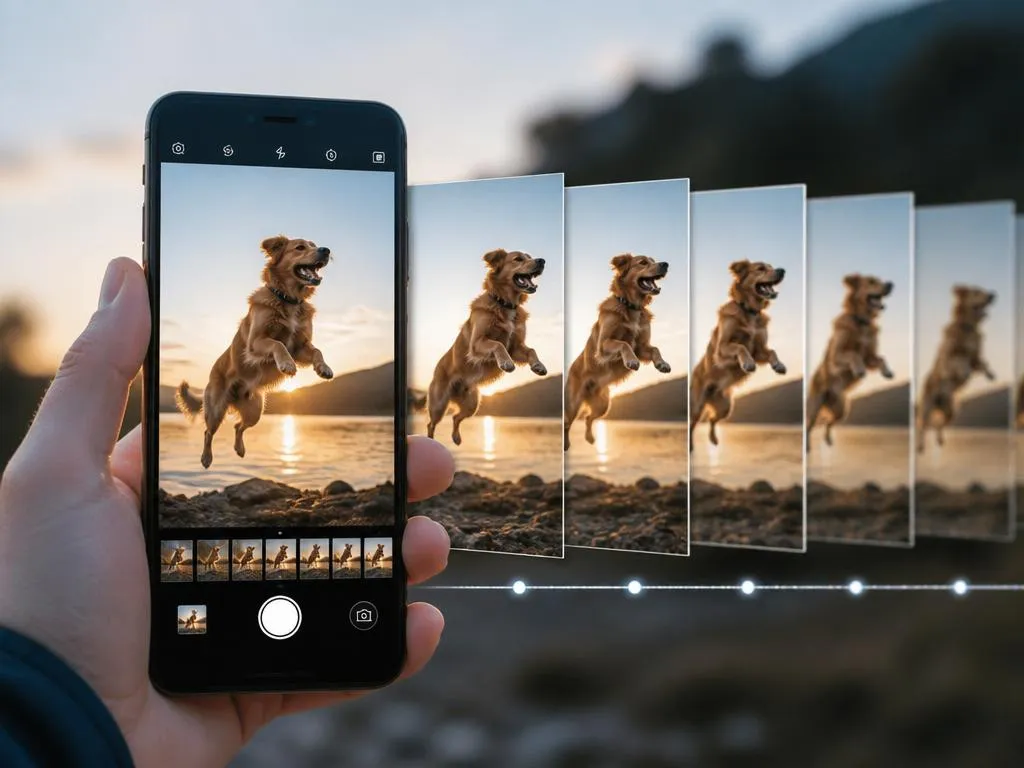
Sharing these living pictures with iOS users can sometimes lead to static, lifeless images. Because Apple and Android use different proprietary technologies, direct transfers often strip away the motion data. To circumvent this, always export your files as videos or loop animations before sending.
Popular messaging services like WhatsApp and Telegram handle these files differently depending on your settings. Sending them as standard media files might compress them heavily, removing the interactive element. For best results, share them as uncompressed documents or convert them beforehand to preserve their full visual integrity.
Social media channels like Instagram and TikTok are perfect platforms for showcasing your moving captures. By exporting your photos as short videos, you can easily upload them directly to your stories. This bypasses any compatibility issues and ensures your followers see the beautiful motion.
When sharing online, maintaining visibility is just as important as the quality of your visual content. Businesses often struggle with digital visibility, much like local services trying to gain organic traction. Implementing a customized strategy to dominate local search options ensures your content gets noticed.
Troubleshooting issues with moving images on android
Sometimes, you might notice that the motion option is completely missing from your camera screen. This is usually caused by having high-resolution modes or night mode active. Many devices disable the moving photo feature when these advanced processing modes are turned on.
To resolve this, open your camera settings and ensure you are shooting in standard resolution. Look for the small icon resembling a play button or a circle with rings. Tapping this icon will re-enable the motion capture feature instantly on your screen.
Another common issue is blurry motion when shooting in low-light environments. Because the camera needs to capture multiple frames quickly, dark settings can cause motion blur. Try to use this feature primarily in well-lit areas or outdoors under bright sunlight.
If your gallery is not playing the motion automatically, check your system battery saver settings. Extreme power saving modes often disable automatic video playback to conserve valuable system resources. Turning off power saver will restore the fluid, interactive photo experience immediately.
⚠️ Quick troubleshooting checklist
- Disable Ultra-High Resolution (e.g., 50MP or 108MP settings)
- Turn off HDR or Night Mode manually before shooting
- Ensure battery saver mode is disabled in system settings
Best third-party mobile tools for advanced photo editing
While the default system galleries are highly capable, third-party apps offer even deeper editing controls. Applications like Adobe Lightroom Mobile and Snapseed provide professional-grade adjustment tools. These powerful tools allow you to fine-tune colors, lighting, and selective details with absolute surgical precision.
For dedicated motion editing, specialized apps like Motionleap or Pixaloop are incredible options. They allow you to add synthetic movement to static areas of your photo. You can animate water, hair, or clothes while keeping the rest of the image still.
These applications use advanced artificial intelligence to detect boundaries within your photos automatically. This makes the animation process incredibly simple, even for complete beginners with no editing background. The results are highly engaging and perfect for catching attention on social feeds.
Before importing your files into third-party apps, make sure to export them correctly. Some external editors do not support the raw proprietary format directly from your device gallery. Converting them to high-quality MP4 videos first always ensures a seamless and hassle-free editing workflow.
Final thoughts on mastering dynamic mobile photography
Embracing moving captures allows you to preserve your memories with unparalleled depth and emotion. Instead of flat, static images, you preserve the true atmosphere of every special moment. It is a simple setting that completely revolutionizes how you view your digital archives.
By mastering the editing and conversion tools available, you can share these moments with anyone. Whether you export them as quick looping GIFs or high-definition videos, your memories will shine. The process is quick, intuitive, and highly rewarding for photographers of all skill levels.
With the constant evolution of mobile camera systems, these features will only continue to improve. Taking the time to understand them now sets you up for creative success in the future. Go ahead and start exploring the incredible moving world hidden inside your smartphone today.
“A photograph captures a moment, but a moving image captures the soul of that moment.” — Anonymous
