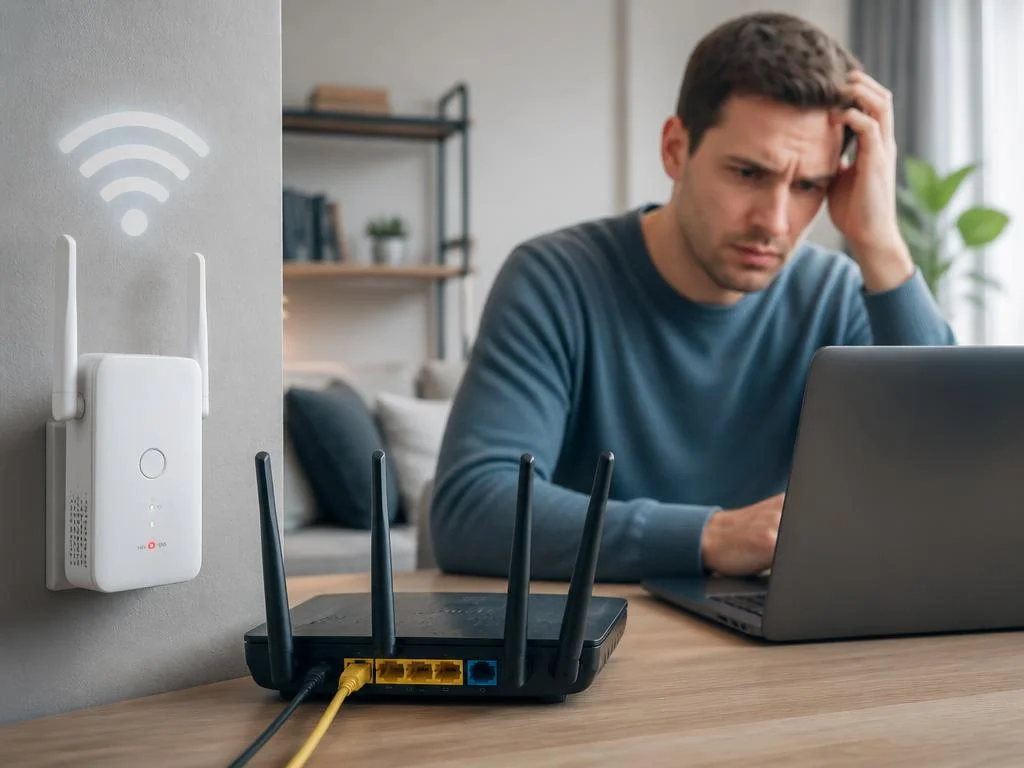
Dealing with a situation where your wifi repeater connected but no internet is a frustrating experience for many home users. You have successfully linked your device to the router, yet your laptop or smartphone remains offline despite showing a full signal strength. This common network issue often stems from a synchronization error between the range extender and the main router. Understanding the underlying connectivity barriers is the first step toward restoring your wireless coverage and enjoying a seamless browsing experience throughout your house, especially in those problematic dead zones that plague large rooms.
To diagnose this problem, we must look at IP address conflicts, frequency band compatibility, and distance limitations that often disrupt stable data transmission. When the handshake between your hardware components fails, your device perceives a connection that carries no actual traffic. We will explore effective methods to rectify these technical glitches, ensuring your setup is correctly configured for optimal performance. Whether you are troubleshooting a simple software hiccup or a more complex configuration error, this guide provides the necessary steps to resolve your local network issues and maintain consistent connectivity across all rooms.
Step-by-step diagnostic process
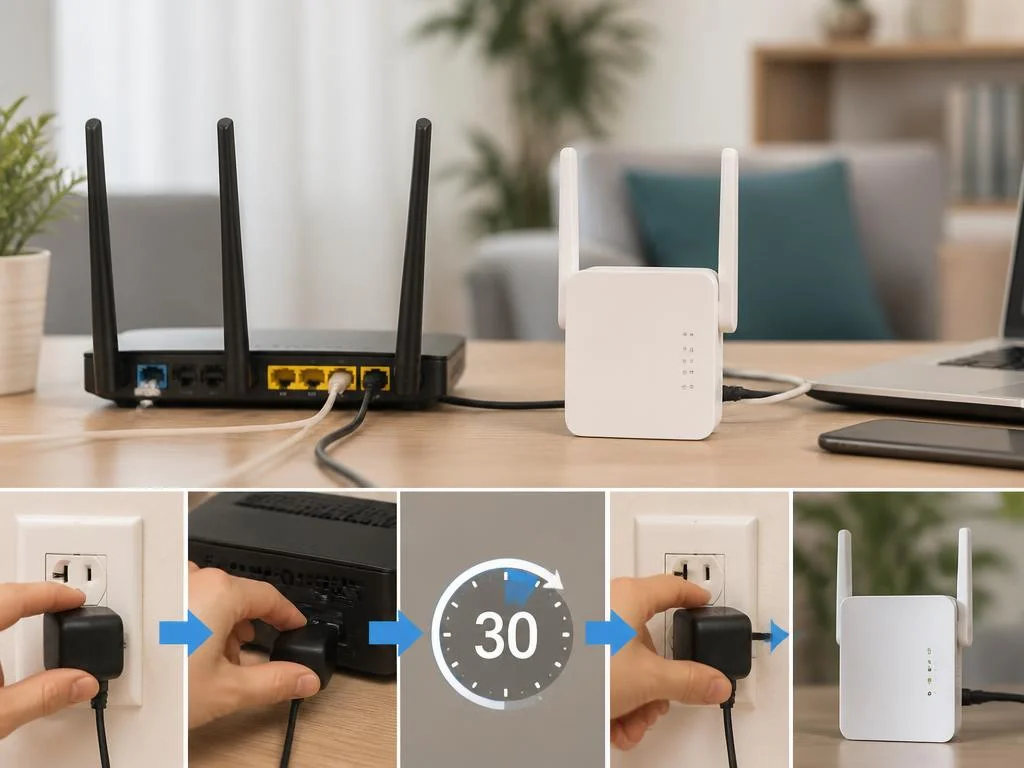
The first step involves power cycling both your main router and the repeater to clear transient cache memory that might be blocking traffic. Turn off both devices for at least thirty seconds before plugging them back in, starting with the router. Wait until the modem fully stabilizes before initiating the repeater boot process. This simple action often resolves unexpected software locks that cause the device to appear connected while failing to route incoming data packets correctly from your internet provider’s gateway.
Verifying the repeater placement
Proper physical location plays a vital role in network stability. If the extender is positioned too far from the source, it might capture a weak signal that is insufficient for reliable data throughput. Always place the device halfway between the router and the area with poor coverage. Ensuring an unobstructed path helps the signal remain robust enough for actual browsing tasks, rather than just showing a fake connection state on your device dashboard. You can consult an essential guide to troubleshooting if you suspect hardware damage beyond standard software settings.
💡 Pro tip: check the signal lights
Most modern repeaters feature LED indicators that reflect signal strength. If the light is red or blinking, your device is not receiving a usable signal. Repositioning the repeater slightly closer to the main router is often sufficient to turn the indicator back to green or blue, indicating a solid link that allows for stable internet connectivity for all your household electronics.
Resolving IP address conflicts
Sometimes, the repeater fails because of a DHCP conflict where both the router and the extender attempt to assign IP addresses to your connected devices. To fix this, log into the web management interface of your repeater and ensure it is set to bridge mode rather than acting as an independent router. This configuration allows your main hardware to manage all traffic effectively, preventing data bottlenecks that lead to an “offline” status even when the physical connection appears perfectly fine. This is a critical adjustment for advanced home networks.
Common configuration errors
- Incorrect security encryption protocol selected during setup.
- Firmware version being outdated for current router standards.
- SSID name conflicts causing roaming issues for client devices.
- Access point isolation enabled in the main router settings.
Hardware compatibility and updates
Compatibility issues can occur if your repeater does not support the same frequency bands as your primary router. Always ensure that the 2.4GHz or 5GHz settings match across both units to allow for smooth handoffs. If you are experiencing persistent failures, it might be time to check if you need to upgrade your primary hardware, as detailed in an expert guide for motherboards that manage complex network traffic. Updating firmware often resolves these underlying technical barriers, enabling better handshake protocols between your various networking components for a more reliable and secure home office environment.
⚠️ Important warning
Avoid using outdated security protocols like WEP, as they are not only insecure but often unsupported by modern repeaters. Always choose WPA2 or WPA3 settings to guarantee compatibility and protect your personal information from unauthorized access while using extended wifi coverage throughout your property. Updating your security settings is a basic requirement for today’s internet standards.
Advanced network troubleshooting
If the standard resets fail, consider performing a full factory reset of the repeater. Use the pinhole button on the device to clear all custom settings and re-run the initial setup wizard. This process removes corrupted configuration files that could be causing the no-internet issue. For those who frequently upgrade their PC components, learning how to find motherboards that handle modern networking demands can also prevent many connectivity issues in the future. Persistent issues after a reset often indicate a deeper hardware fault within the repeater itself.
Summary of connectivity fixes
To successfully resolve the connection issue, always verify the wireless repeater placement, check for IP conflicts, and update your firmware to the latest available version. These systematic steps address the most frequent reasons for a connection that provides no data throughput. By following these professional guidelines, you ensure that your home network remains robust, reliable, and capable of supporting all your daily digital activities without further interruption or unexpected downtime during critical work hours.
